Maintain IT DVIR & Backlogged Items |

|
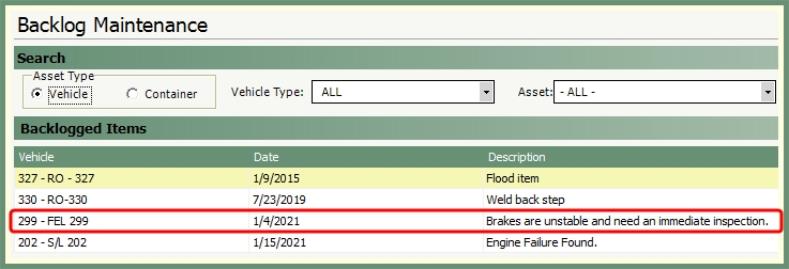
Following driver inspection failures, a backlog item will automatically be created for the asset in Backlog Maintenance.
|
|
|
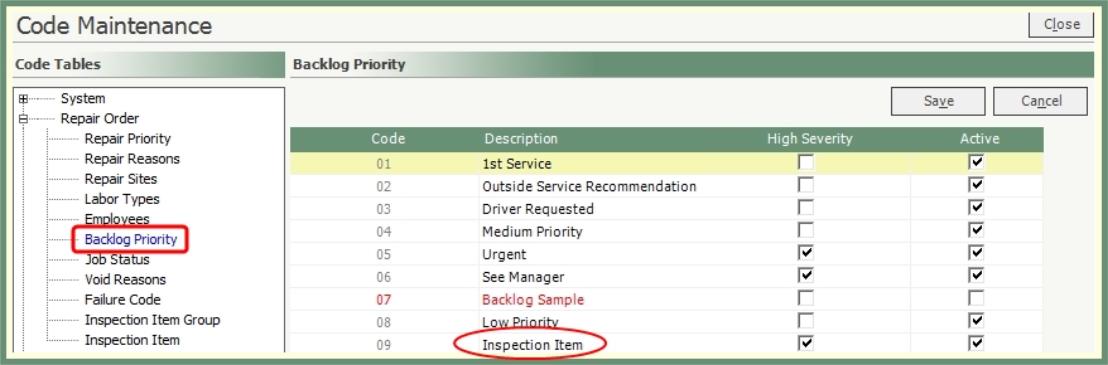
Designate an Inspection Item backlog priority code for failures created by the driver via DVIR.
Navigate To: System>Configuration>Code Maintenance>Repair Order>Backlog Priority
-
Create an Inspection Item code in Backlog Priority.
-
This code can be applied to backlog items created via DVIR. See more about repair codes here.
-
Assign backlog items to repair orders and review by asset type and status.

Navigate To: Maintenance>Backlog Maintenance OR Click the file tray Shortcut

-
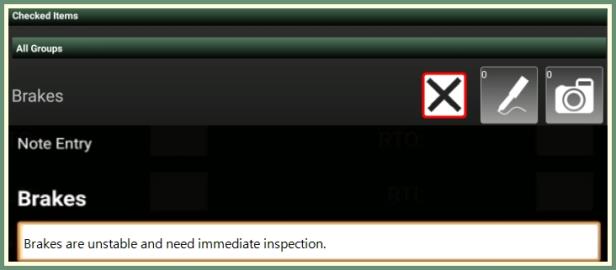
Driver marks an item as failed during the pre and/or post trip inspection within DVIR. See more about DVIR here.
-
The failure item will be added to the Backlogged Items grid in Backlog Maintenance.

-
The grid will default to all incomplete unassigned vehicle backlogged items.
-
Select Container asset type to view container backlogged items.
-
Select specific vehicle type and/or asset to filter the grid.
-
To include assigned, completed or no repair required, select the box above the grid.

Assigned: Displays the Repair Order number in the Repair Order column.
Completed: Displays a check mark in the Completed column as well as the assigned repair order number.
N.R.R.: Displays a check mark in the N.R.R. column for backlogged items marked as no repair required.
-
Sort the grid by column headers.
-
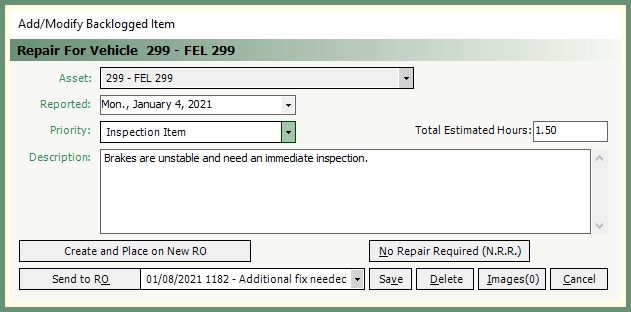
Double click on an existing backlogged item to open or click Add to start a new item.
-
Fields in green are required.
-
The Asset, Reported Date and Description will be populated from the failed inspection item.
-
Select Inspection Item priority code for DVIR inspection failures.
-
Populate Total Estimated Hours if known.
-
Select an action of Create and Place on New RO, Send to RO or No Repair Required.
-
Create and Place on New RO: Opens a new repair order. Populate fields and save your entries. See more here.
-
Send to RO: Displays existing open repair orders to send this backlogged item to. Item is sent to repair order immediately

 .
. -
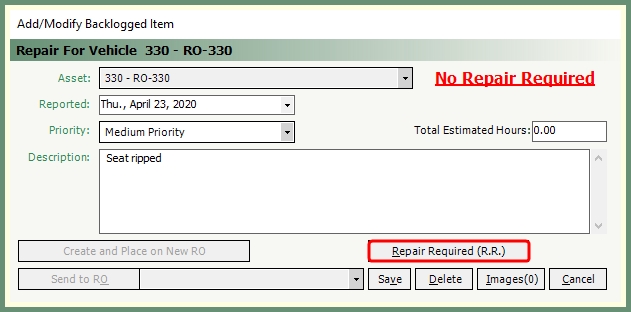
No Repair Required (N.R.R.): Closes the backlogged item. If recalled, No Repair Required will be displayed in red and Repair Required (R.R.) can be selected to re-open the backlogged item
 .
.
-
Click Image to add or view images on an open or completed backlogged item.
-
Click Delete to remove an open backlog item that has not been completed.
-
Click Save to save changes to a modified backlog item.
-
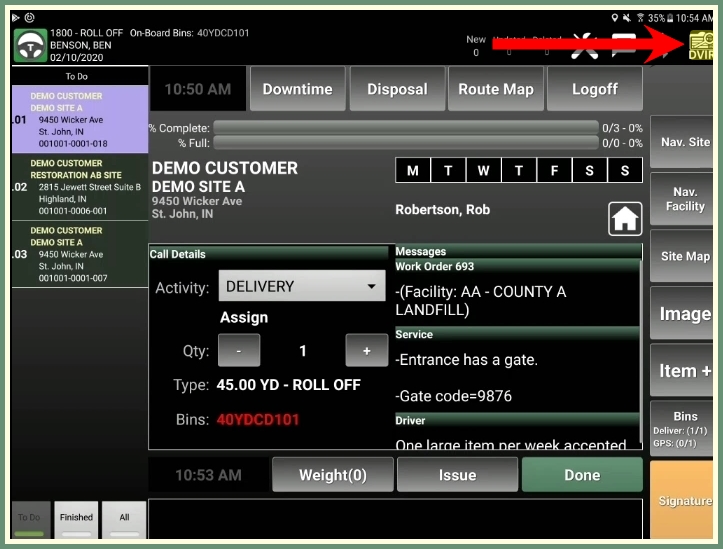
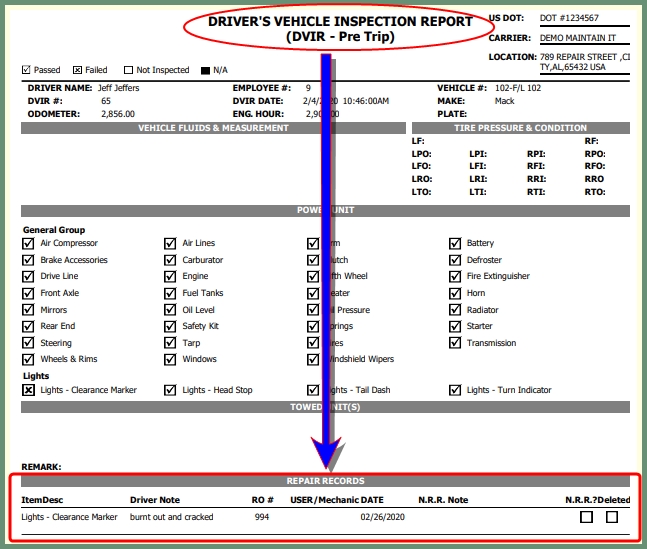
Drivers can view the status of vehicle repairs by reviewing the inspection report on the tablet by clicking DVIR in the upper right corner. See more about DVIR Center here.
|
|
See more about repair order backlogged items here.
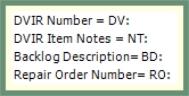
Review pre and post trip inspections, created & completed backlog items, repair orders and images.
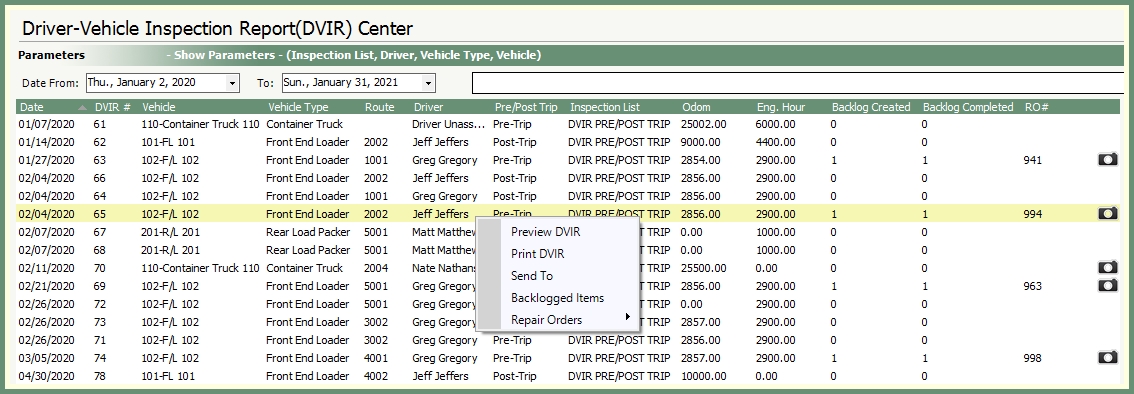
Navigate To: Maintenance>DVIR Center
|
|
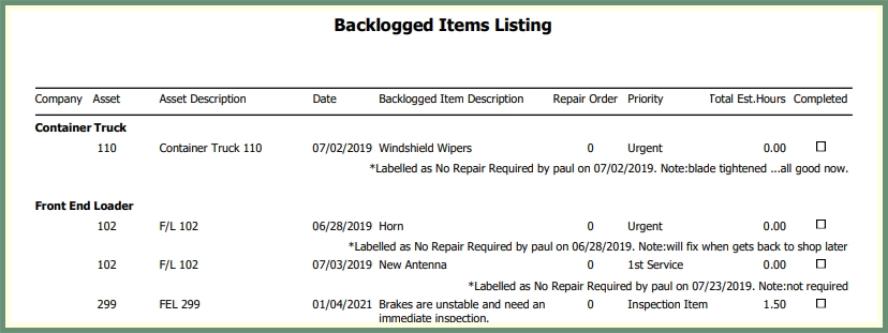
Review a list of open and/or completed backlogged items by specified parameters.
|
|
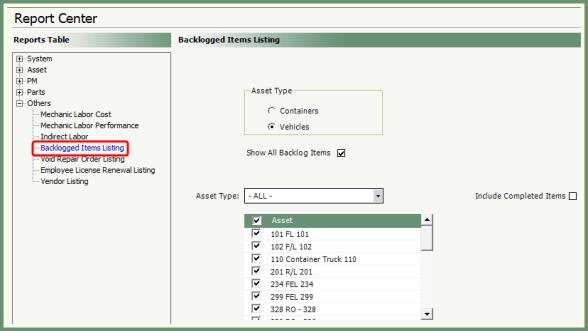
Navigate To: Report>Report Center>Other>Backlogged Items Listing
-
Select Vehicle or Container Asset Type.
-
Show All Backlog Items will be selected by default. To report by date range, remove the check mark and enter the start and end dates.
-
All Assets will be selected by default. To filter the grid by specific asset type, make your selection from the drop down.
-
Select all, multiple or specific assets from the grid.
-
Completed backlogged items will not be included unless selected.
-
Select your output.
DVIR - Driver Vehicle Inspection Report Setup
DVIR Center - Driver Vehicle Inspection Report